Demo data note: Screenshots use representative demo data captured from a live environment. AI features depend on a configured provider; some setup screens show advisory states where no provider or hardware is configured. Never send real customer data to a model without that tenant's explicit data-consent, and never show API keys.
How AI is positioned
AI in ColorsX74 ERP is not a bolt-on chatbot — it is ERP-aware help embedded in the daily workflow, branded ARIA. It can answer questions about your own data, scan documents into structured records, and draft business documents, all governed by a per-tenant provider configuration and a consent posture. The assistant is built around discrete skills you can turn on or off, and a setup wizard guides administrators from hardware detection to activation.
Jump to: ARIA assistant · Document scan · Document draft · AI settings · Setup wizard · Consent & safety.
ARIA — the AI assistant
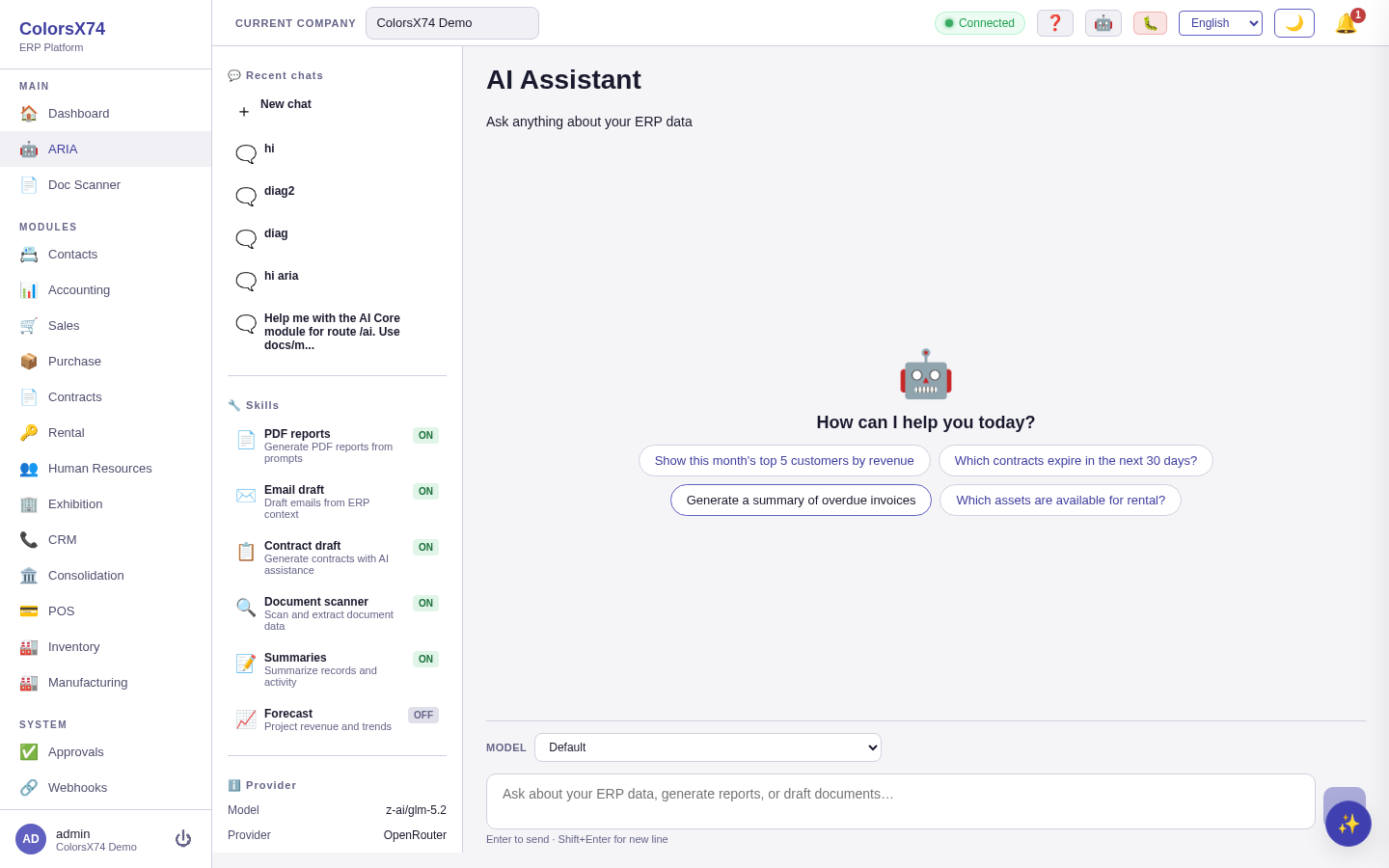
What it is. ARIA is a conversational assistant that understands your ERP data. The screen pairs a chat surface with a Skills panel (each skill can be ON or OFF) and a Provider panel showing the active model, provider, and online status. It offers starter prompts so users know what to ask.
How to use it. Open ARIA from the top of the navigation and type a question, or click a suggested prompt such as "Show this month's top 5 customers by revenue", "Which contracts expire in the next 30 days?", "Generate a summary of overdue invoices", or "Which assets are available for rental?". The skills panel shows what ARIA can do — in the demo, PDF reports, Email draft, Contract draft, Document scanner, and Summaries are enabled, while Forecast is off. Press Enter to send (Shift+Enter for a new line) and choose a model from the selector.
ARIA sees the screen you're on (ambient context). You do not have to explain where you are or paste anything in — ARIA is told which view you have open: the module, whether it is a list, a dashboard or a single record, and which record is in focus. On a sales invoice you can simply ask "what's wrong with this?" or "explain this screen" and ARIA answers about that invoice, fetching its live values first rather than guessing them. Say "this", "here", or "these" and it understands you mean what is on screen. It also knows your name, your company, and your language, so replies stay personal, correctly scoped, and in your own locale.
It knows how the ERP itself is built. ARIA can read the live data model and the live API surface — which entities exist in each module, what fields a sales invoice actually carries, which operations exist and which permission each one requires. That is read from the running system rather than from a written-down list that can go stale, so answers to "can the system do this?" or "what permission do I need for that?" match the software you are actually using. It reads the same authoritative module help guides that back the in-app help too, so "how do I run a period close?" is answered from the guide rather than invented.
Your approvals, in the conversation. Ask "what needs my approval?" and ARIA lists the approval requests waiting on your decision — addressed to you directly or through a role you hold — with the document type, the amount, and who raised it. You can then approve or reject one without leaving the chat: it runs the same approval engine the approvals screen uses, including the rule that you cannot approve a request you raised yourself, and because it is a real decision it asks you to confirm first.
Operator diagnostics. For administrators holding the system-diagnostics permission, ARIA can answer "what is wrong with the system?" directly: whether the database is reachable, which background jobs have failed recently and with what error, and whether this company's audit trail is intact. The same permission unlocks a tail of recent server errors and a 30-day digest of ARIA's own quality — thumbs-up/down counts, recent thumbs-down comments, and the skills that most often fail or get refused. Everyone else is simply refused, and told which permission they would need.
Rate an answer. Every answer carries a 👍 / 👎 — tap one to say whether it helped, and add a short note on 👎 to say what was wrong. Ratings are stored against that answer and feed the quality digest above, so the team can see where the assistant falls short instead of guessing.
How many skills, and where they come from. The core product ships 45 ARIA skills — 28 read-only lookups and 17 that actually do something. An installed add-on module can contribute skills of its own (the Customer Support module, for example, adds a ticket summary), and they appear to ARIA alongside the built-in ones. Anything an add-on contributes that acts always asks you to confirm first, on principle.
Show ARIA a document (attachments). You can attach a file to the conversation instead of describing it. Use the 📎 button in the composer (or attach several — up to five per message), and each document is read with the same scanner that powers Doc Scanner. The extracted text joins the conversation, so you can ask follow-up questions about it — "what's the total on this?", "does this match PO-1042?", "which lines are taxable?" — without re-attaching. Only the extracted text is kept, never the file itself, and a staged attachment you never send is discarded automatically after 24 hours. Long documents are shortened to fit the conversation, and ARIA is told when that happened so it will not pretend to have seen the rest.
Use it wisely. Treat ARIA as a fast analyst, not an oracle — verify any number it gives you against the source report before acting on it. Enable only the skills your users actually need; fewer, well-understood skills are easier to govern. Phrase questions concretely ("top 5 customers by revenue this month") rather than vaguely, and keep demo conversations on demo data. When you attach a document, check the figures ARIA quotes back against the document itself before acting on them.
ARIA drafts invoices — it never posts them. When you ask ARIA to raise an invoice it creates a draft: nothing is posted to the ledger, no customer balance moves, and no credit limit is touched. The invoice waits for you to review and issue it, and issuing is always your step, never ARIA's. This is deliberate — it lets ARIA prepare work continuously without anything becoming final until a person agrees.
Vendor bills are different for now. A bill ARIA creates is posted on creation, because the purchase side does not yet have the same draft state. Until it does, treat an ARIA-created vendor bill as a real, posted document.
ARIA can offer to work ahead. When you ask something you will plainly want again — what is overdue, what needs approving, how the month is going — ARIA answers first and may offer once to run it on a schedule and send you the result. It never schedules anything without your explicit yes, and it checks what is already running so it cannot set up a duplicate. Ask it to list or cancel your schedules at any time.
Proactive insights are separate and off by default. ARIA reacting to events as they happen — reviewing an invoice the moment it is raised, for instance — is a per-company setting an administrator turns on under AI Settings → Ambient AI, with its own daily budget. ARIA cannot switch it on itself.
Document scan
What it is. Document Scan (the Doc Scanner in the navigation) turns documents — invoices, receipts, and similar files — into structured data you can review before it becomes a record.
How to use it. Open Doc Scanner, upload a clean demo file, and let the scanner extract the fields; review and correct the extraction, then commit it to the appropriate record. The scan step always produces a draft for human review rather than posting silently.
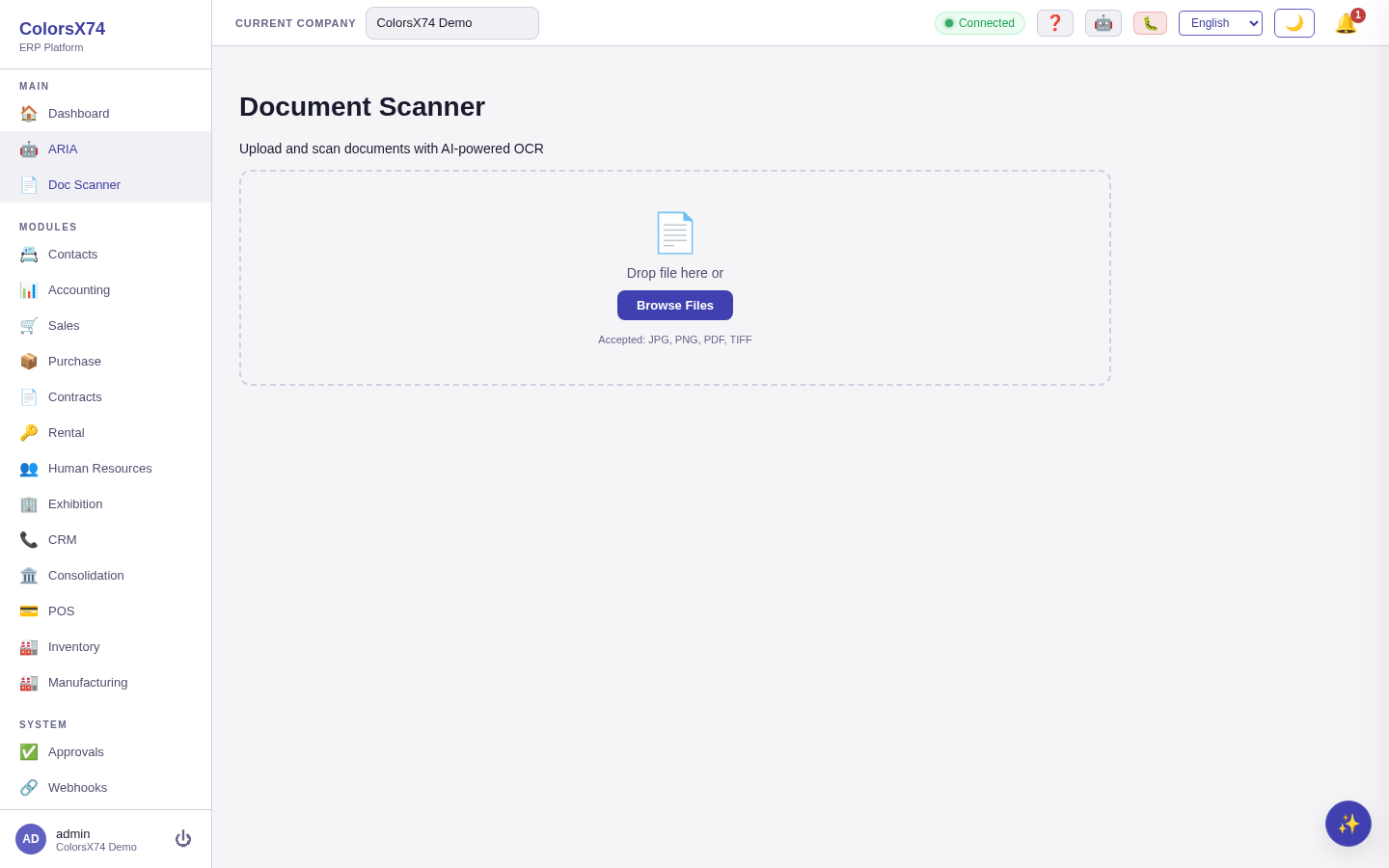
Scan several documents at once. The scanner takes more than one file per go — pick or drag a whole batch of supplier invoices and they queue up together. Each document is extracted on its own and reported on its own: a file the scanner cannot read (an unsupported type, an oversized file, an unreadable scan) says so against that file alone and the rest still come back extracted, so one bad page never costs you the batch. Review the list, open any result to check its fields, and commit the ones you want. A batch takes up to 10 files, 5 MB each and 25 MB in total.
PDFs and photos both work. A PDF that already carries its text — an emailed invoice, a statement, a generated purchase order — is read directly, which is exact. A scanned page or a photo is read with OCR instead. You do not choose: the scanner picks the right method per file.
Use it wisely. Always review extracted values — especially amounts, dates, and tax — before committing; OCR is a head-start, not a substitute for a checker. In demos use only clean, non-confidential sample documents.
Document draft
What it is. Document Draft turns a prompt and a template into the first version of a business document, so users start from a sensible draft instead of a blank page.
How to use it. Open Document Draft, choose a template, describe what you need, and let the assistant produce a draft you then edit and finalise. The output is explicitly a draft, not a final document.

Use it wisely. Use drafting to remove the blank-page problem, not to skip review — read every generated clause, particularly in contracts. Keep a small set of good templates so drafts start from your house style.
AI Settings — provider, models, skills, hardware, privacy
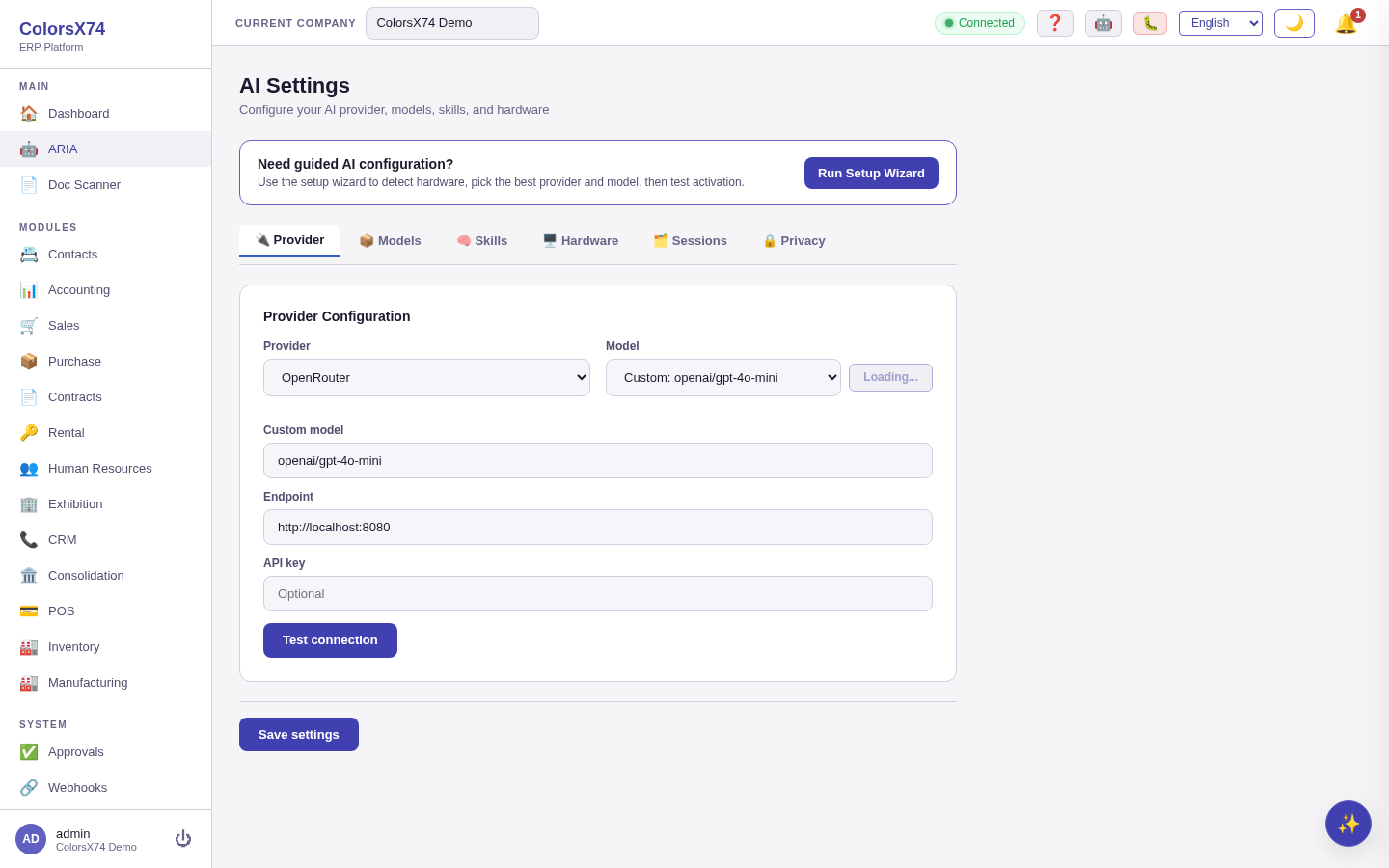
What it is. AI Settings is where an administrator configures the tenant's AI: the provider and model, the available skills, the hardware tier, session history, and the privacy/consent posture. It is organised into tabs — Provider, Models, Skills, Hardware, Sessions, and Privacy — and links to the guided setup wizard.
How to use it. On the Provider tab pick a provider (for example Anthropic Claude), choose or enter a model, set the endpoint and optional API key, then Test connection before saving. Use Skills to toggle individual capabilities, Hardware to review the detected machine tier, Sessions to see conversation history, and Privacy to control data handling and consent.
Per-task model routing (optional). Beyond the single default model, you can route each request type to the model best suited for it — for example a cheap, fast model for chat and a stronger model for contract drafting. On the active provider's card a Per-task model routing section lists each routable task (Chat, Draft, Auto-translate, and Contract drafting / renewal / extraction); pick a model per task, or leave it on Use default model. Routing only changes which model within your configured provider handles the request — it never changes the privacy/consent rules (cloud egress still requires consent regardless of the model). A platform operator can set the same per-task routing on the system-default "free AI" so every company inherits sensible task-to-model choices.
Choosing the system-default model (platform operators). On the System Default AI page a platform operator pastes the shared OpenRouter key and the full live model catalogue loads into a sortable, filterable table — click any column heading (Model, Provider, Context window, Prompt $/1M, Completion $/1M) to sort, or type in the filter box to narrow hundreds of models to the ones you care about, then press Select on a row to make it the default (the chosen row is badged ✓ Default). To take the guesswork out of it, the page highlights a Recommended default with a one-click Use button and a ★ on the suggested row, and each per-task routing row carries a ✨ recommended button that applies the best-suited model for that task — recommendations balance capability, context window, and price, so chat and translation lean to cheap, fast models while drafting and contract work lean to stronger ones.
The same configuration is also reachable from the global Settings area:

Use it wisely. Always Test connection before relying on a provider, and keep the API key in secure configuration — never paste it into a shared screen or screenshot. Match the model to the hardware tier the Hardware tab reports; a model larger than the machine can serve will be slow or fail.
The AI Setup Wizard
What it is. A guided, five-step path that takes an administrator from nothing to a working assistant: 1 Detect hardware → 2 Choose provider → 3 Choose model → 4 Skills & confirmation → 5 Test & finish. Step one inspects the machine (CPU, cores, RAM, GPU) and recommends a provider tier; for a CPU-only machine with limited RAM it will, for example, recommend llama.cpp with a small model and warn that only small models are supported reliably.
How to use it. Click Run Setup Wizard from AI Settings and follow the steps in order, accepting or overriding the recommendations, then test activation on the final step. The wizard is the fastest way to a sane first configuration.

Use it wisely. Run the wizard once per environment before opening AI to users, and heed the RAM/GPU advisories — picking a model the hardware cannot serve is the most common cause of slow or failing AI. Re-run it after a hardware change.
Consent, safety, and ARIA handoff
AI in ColorsX74 ERP is built to be governable. User data is only sent to a model where the tenant has granted data consent, scanning and drafting produce drafts for human review rather than silent automation, and sessions are recorded so AI activity is auditable. When discussing the in-app ARIA assistant, emphasise human confirmation, permissions, and job history over invisible automation.
ARIA sees exactly what you see. Every question ARIA answers is bounded by your own permissions — not just the actions it takes, but the information it reads. Asking for the overdue-invoice list, an aged-receivables report, a cash-flow forecast, a contract's terms or a vendor's pricing requires the same permission as opening that screen yourself, and when you ask a question that spans several kinds of record, ARIA quietly answers from the parts you are entitled to. If you lack the permission entirely, ARIA says so and names what is missing, so you can ask an administrator for it rather than wonder why the answer looks thin.
Anything that reaches the ledger is confirmed first. ARIA can raise a sales invoice or enter a vendor bill for you, and because those post to your accounts the moment they are created, they join payments, journal entries and period closes on the list of actions that show you a confirm step before anything happens. Records that touch no ledger — a customer, a quotation, a purchase order — are created straight away, so the confirm step stays meaningful instead of becoming a reflex click. A confirmation is also single-use: confirming twice (a double-click, a retried request) can never post the same document twice.
Every step ARIA takes is written down. Each skill invocation is recorded: which skill ran, the parameters it was given, what came back, whether it succeeded, failed, was refused or cancelled, whether it needed confirmation and who gave it, when it ran, and the error if it failed. A refusal is logged as carefully as a success, so a permission problem leaves a trace you can point at rather than a mystery.
Search shows you only what you could open yourself. The global search index is a copy of your records, so it is filtered exactly the way the records are: each entry inherits the owner of the row it came from, which means a colleague's private activity can never surface through your search results. Searching stays open to every user in the company; rebuilding the index or removing entries from it is a maintenance operation and carries its own administrator permission.
Use it wisely. Make consent an explicit decision per tenant, keep a human in the loop for anything AI drafts or extracts, and in public demos use only demo data and sandbox/test credentials. Treat the Privacy tab and consent setting as the front gate to every other AI feature.
Enabling cloud AI (the "enable cloud content" prompt). Local providers (llama.cpp, on-prem Ollama) need no consent. Cloud providers — OpenAI, Anthropic, Google Gemini, and OpenRouter — only become selectable, testable, and usable once an administrator grants this company's AI data consent. Turn it on from AI Settings → Privacy, or directly in the setup wizard's provider step; that single toggle clears the "enable cloud content / consent required" message and unlocks the cloud provider cards. Data is still only sent to the cloud for a tenant that has granted this consent — it gates both setup and every actual request.
OpenRouter. OpenRouter is a unified, OpenAI-compatible gateway (one API key reaches OpenAI, Anthropic, Google, Mistral, and more). Pick OpenRouter on the provider step — the endpoint is prefilled to https://openrouter.ai/api/v1 — paste your OpenRouter API key, and choose a model id such as openai/gpt-4o-mini or anthropic/claude-sonnet-4.6. Test & finish validates and activates it.
Long answers are capped. To keep your AI provider account from being over-reserved, ARIA limits how long a single reply can be (4,096 tokens by default). On low-balance OpenRouter accounts this removes the "payment required" (402) error that long limits could cause. If a reply hits the limit, ARIA says so at the end of the message, so you know it was cut short and can ask it to continue. Self-hosted models are capped too; an administrator can raise the limit for long-form use.
Suggested demo flow
- Open ARIA and run a suggested prompt to show ERP-aware answers, then point at the Skills and Provider panels.
- Show Document Scan turning a sample file into a reviewable draft.
- Show Document Draft producing an editable first version from a prompt.
- Open AI Settings and walk the Provider/Skills/Hardware/Privacy tabs.
- Run the AI Setup Wizard to show the guided path, and close on consent and human-in-the-loop safety.